Ez-Talk : Layered Text Add-on for MS Word
Ez-talk is an add-on program for MS Word that lets users create
multiple text layers within a document. It allows the user to take
complex material and create easy to understand outlines and summaries (layers)
of the information within the MS Word document accessible to the viewer simply by clicking on the original
text, thereby exposing the underlying layers of text outlines and summaries. This
allows the reader to easily flip back and forth between summaries of the
dense material and the original dense material itself.
The example below shows two layers, 1 and 2. Layer 1 is a summary of
the dense paragraph presented, while Layer 2 is a still further
simplified summary of the paragraphs presented. This program also
allows the user to layer in a picture or sound file also (not shown).
Overall, Ez-talk allows the user to create easy to understand summaries
for dense documents that are easily accessible to the reader by simply
clicking on the desired paragraph to be summarized.
Please follow the
example below to better understand how Ez-Talk works. This example will
demonstrate how a user creates layered summaries using Ez-talk (Part I) and how
a viewer then accesses these summaries once they have been created (Part II).
Specifically, below the user will create two layers for the first
paragraph of this dense legal memorandum and one layer for the third
paragraph. Then you will be see how a person reading the document that
was created using Ez-talk (the "reader"), can access the layers the
user created to make reading the document much easier
Please note that
the interface (button image/color/orientation/interactivity) shown below can be
easily modified to be more visually appealing or to meet your
needs/specifications.
The simplest interface was chosen as a default.
Example :
I. USER CREATING LAYERS FOR DOCUMENT USING EZ-TALK
*Below is a set of 3 dense paragraphs
from a hard to understand legal memorandum. Notice the layer 1 and 2
buttons that appear to the left of the document :

*Here are the same paragraphs, but each one is labeled to easily distinguish them

*Here, the user highlights the first
paragraph (not shown) and clicks on the layer 1 button to expose the
layer 1 text box to type in the text for the first layer. At present
the program defines layers for entire paragraphs only, but can be
easily modified to allow the user to define layers for sentences or
even single words.

*Here the user types in the text for
Layer 1 for paragraph 1. Compare the above screenshots and notice how
the user is typing a simplified, easy to understand summary of the
complex and hard to understand first paragraph.

*After defining layer 1 for paragraph,
the user highlights the first paragraph again and clicks on the Layer 2
button to reveal the Layer 2 text box for paragraph one.
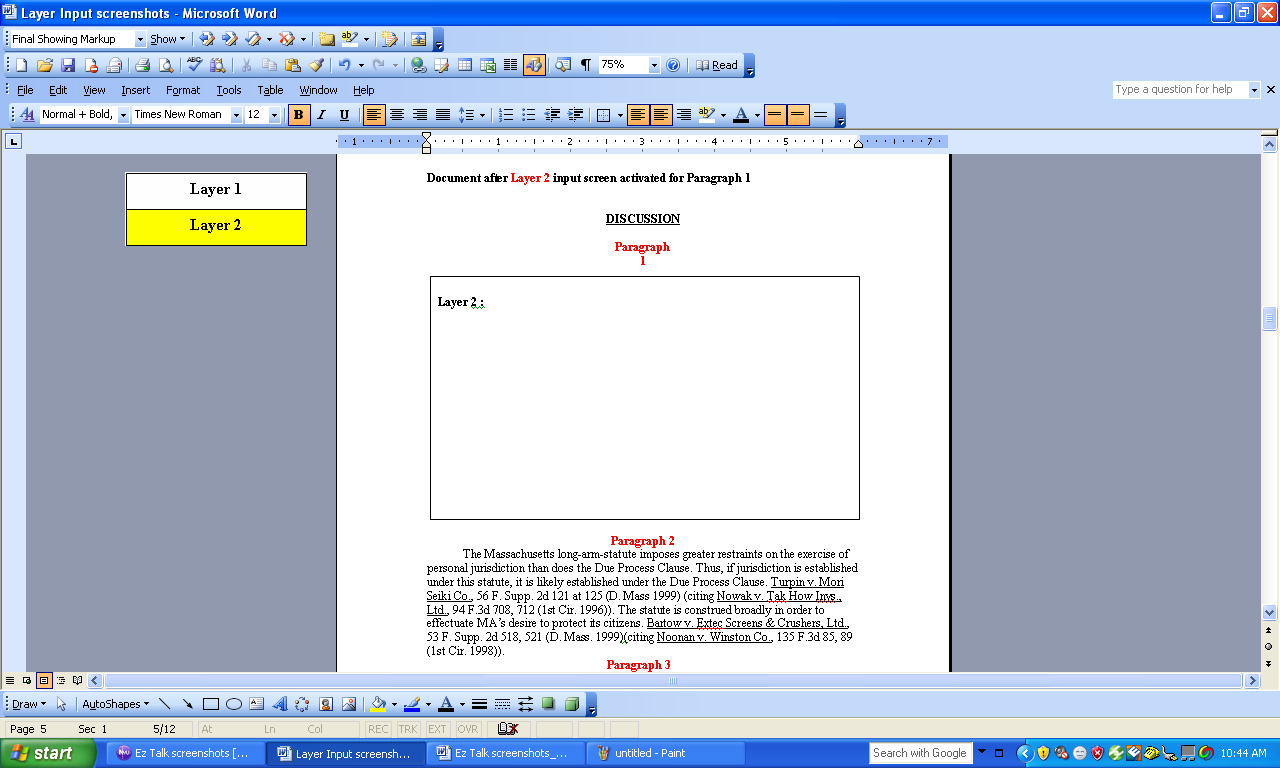
*Here the user types in the text for
Layer 2 for paragraph 1. Compare the above screenshots and notice how
the user is typing an even simpler summary of the
complex and hard to understand first paragraph. Notice this summary is
even simpler than the Layer 1 summary, it is only two sentences.

*Here, the user highlights the third
paragraph (not shown) and clicks on the layer 1 button to expose the
layer 1 text box to type in the text for the first layer of paragraph 3.

*Here the user types in the text
for
Layer 1 for paragraph 3. Compare the above screenshots and notice how
the user is typing a simpler summary of the
complex and hard to understand third paragraph.
II. READER ACCESSING DOCUMENT CREATED USING EZ-TALK
*Now, assume the
layers have already been created by the user. A person is now trying to
read the completed document using ez-talk.
*Ez-talk
comes with a plug-in that allows people
to read Ez-Talk documents without buying the software (allowing for
Ez-talk to be used with the mainstream public), they simply cannot
create/edit Ez-Talk documents without buying the software (this is
similar to how
adobe acrobat reader works).
The reader of the document has trouble understanding the first paragraph
and clicks on the Layer 1 button and clicks on the first paragraph to
expose the Layer 1 layer for the first paragraph. This makes it easier
for the reader to understand the first paragraph.

*The reader of the document still has trouble understanding the first paragraph even with the first layer summary.
Now, he clicks on the Layer 2 button and clicks on the first paragraph
to expose the Layer 2 layer
for the first paragraph. This presents the reader with a still simpler
and easier to understand version of the 1st paragraph. Now he
understands the basic idea of the first paragraph and goes back to the
original paragraph to re-read it after reading the summaries, simply by
clicking on the paragraph twice to go back to the original text
(action not shown).

*Here the user understands the second paragraph, but has trouble following
the third paragraph and clicks on
the Layer 1 button and then on paragraph 3 to expose the 1st layer of
the third paragraph which is easier for him to understand.

MAJOR COMPETITORS :
Ez-talk has no direct competitors, because there is literally nothing like it out there !!!
CONCLUSION :
The above example demonstrates how Ez-talk can be used to make a
document easier to understand, here a complex legal memorandum. Since
each paragraph is defined individually, the reader can access layered,
easy to understand summaries for only the paragraphs they have trouble
understanding. The user even has two layers of simplified summaries, so
if the first layer is not simple enough an even simpler second layer is
available to make the paragraph and passage easier to understand. Also,
since everything is layered, the user can easily compare and flip back and forth
between the layered summaries of the paragraph with the original
paragraph in order to see how the summaries relate to the original
paragraph simply by clicking on the paragraph itself. After activating layers for the paragraphs the user desires,
he can print out the document with these layers exposed [Not Shown].